
















Corporate Service Home > Corporate Service > Enterprise online banking > IB Installation Guideline
-
Kasikornbank (China) Corporate Internet Banking Installation Guideline
1. In your web browser, visit the component download link: https://www.kasikornbank.com.cn/html/corporate-internet-banking-en/
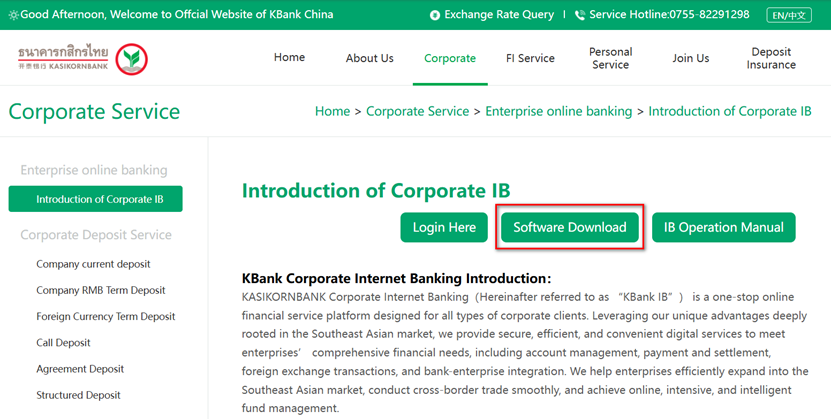
2. On the page, click the “Software Download” link. The downloaded file (name: IB Client, format: ZIP) will be saved in your browser’s default download folder.
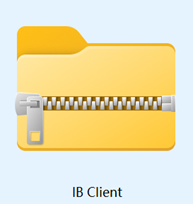
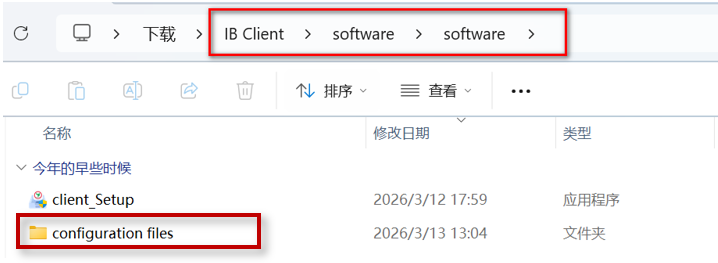
3. Extract the ZIP file (IB Client.zip). Open the configuration files folder inside the extracted directory, and double-click to install the following three components in order:
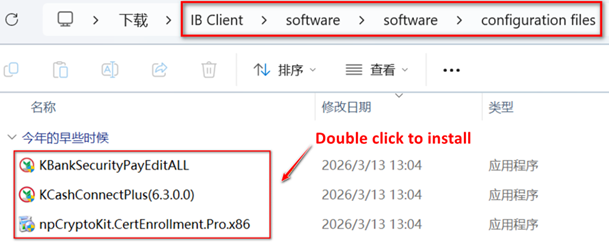
Ø Security Control: KBankSecurityPayEditALL.exe
Ø USB Key (Token) Management Tool: KCashConnectPlus(6.3.0.0).exe
Ø Certificate Installation Control: npCryptoKit.CertEnrollment.Pro.x86.exe
4. Afterward, double-click client_Setup.exe to install the Internet Banking Client.

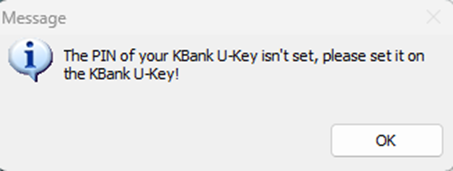
5. Once all components and the client are installed, insert the USB Key (Token). A system prompt will appear. Click “OK” to change the initial password.
Note: Changing the initial password is mandatory upon first use of the USB Key (Token).
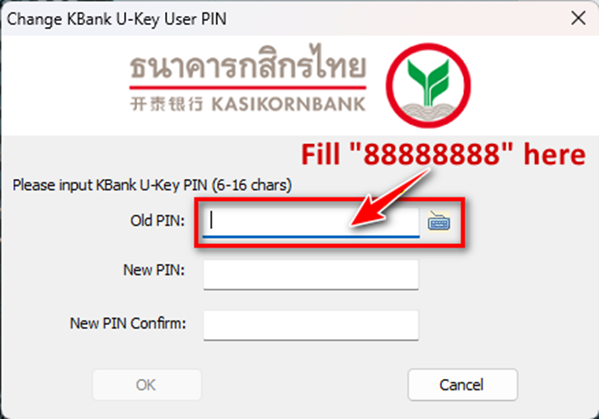
6. On the password change screen, enter the original password (fixed as 88888888), then enter your new password.
※ Important: Please memorize your new password securely. If the USB Key (Token) password is entered incorrectly 6 consecutive times, token will be permanently locked. You must bring a valid ID and the locked token to Kasikornbank (China) branch for replacement.
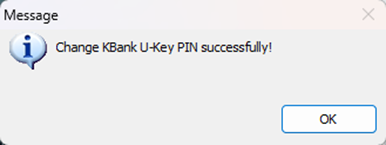
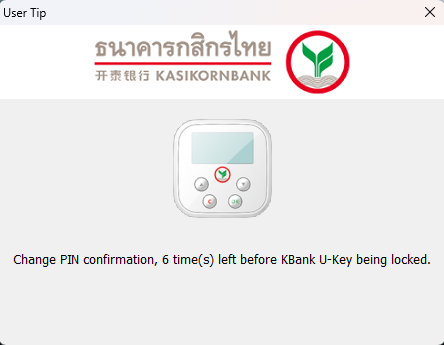
7. After entering the passwords and clicking “OK”, a confirmation screen will appear. Press the physical “OK” button on the USB Key (Token) to complete the reset.
8. Launch the Internet Banking Client.
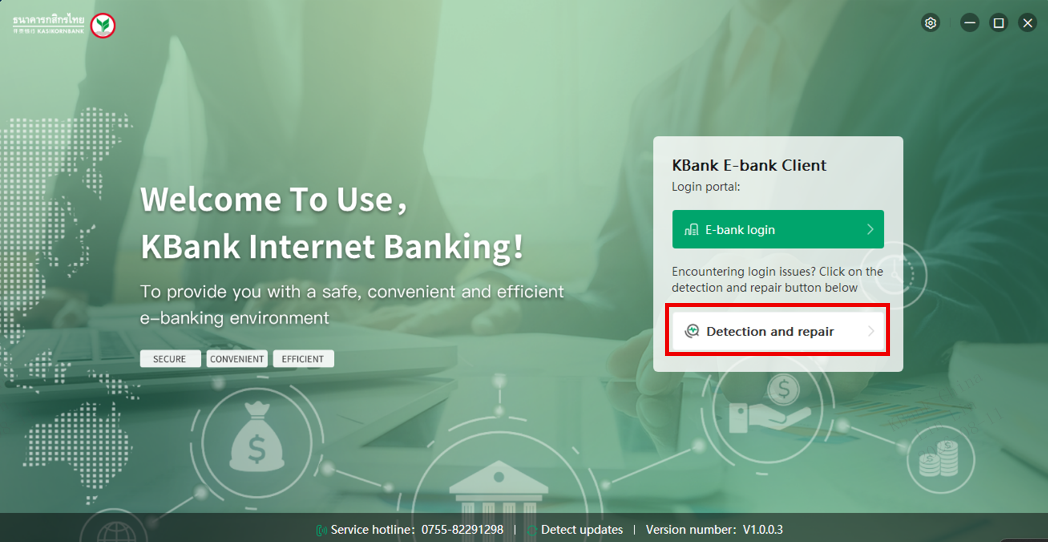
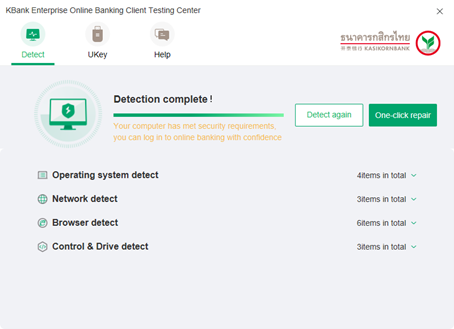
On first startup, click “Detection and repair” to verify components and system environment.
• If the status dialog shows all checks passed (as shown in the reference screenshot), you may proceed directly.
• If any issues are detected, click “One-click repair” in the dialog to fix them automatically.
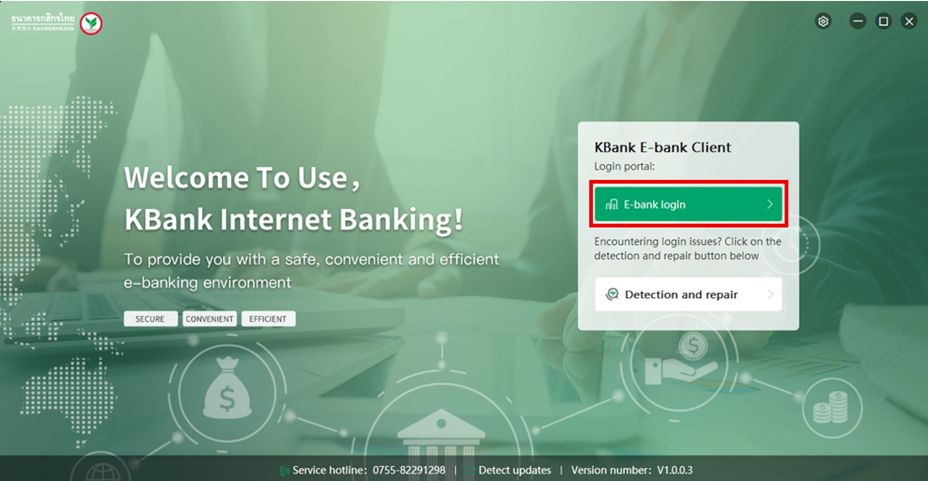
9. Close the check window and return to the client homepage. Click “E-Bank login” to open the USB Key (Token) password prompt.
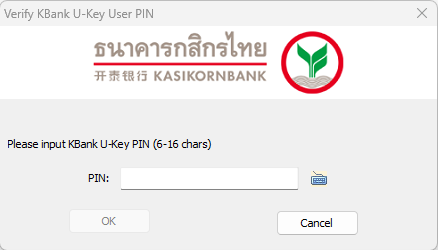
10. Enter your USB Key (Token) password to proceed to the login page.
Note: Enter the USB Key (Token) password you just reset, not your online banking login password.
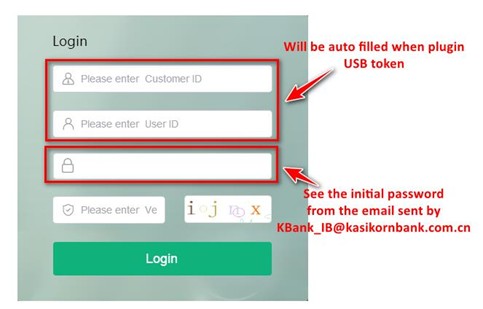
11. On the login page, enter your:
• Online Banking Account (Customer ID & User ID will be auto filled when plug-in USB Key)
• Login Password (initial password is sent via email)
• CAPTCHA Code
Click “Login” to access the system. You will be required to change your login password on first access.
※ Important: The Login Password and USB Key (Token) Password are two separate credentials. Please keep them strictly distinguished.

 WeChat Official Account